
Windows Start Menu Tip
If you're like me, then to get to a Command Prompt you press "Windows Key + R" (or find the "Run..." link in the start menu) and then you type "cmd" and press enter.
Well, in Windows 7 I just found that this is a little bit simpler. If you press the Windows key to open the start menu the cursor is focussed on the search box at the bottom. Just type "cmd" in there and press enter. Voila.
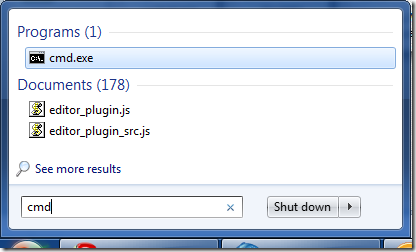
Seems to work regardless of whether the program is in the "All Programs" folder and, as such, makes the search box a replacement for the Run window? You can type web addresses in there too.
I'm finding myself using the search box more and more.


 Skip to the
  You can subscribe to an individual
Hi Jake
You might want to have a look at the open source keystroke launcher "launchy" (http://www.launchy.net/). I can not remember when I used the "start menu" the last time...
Best regards
Ray
Reply
You could consider using Launchy. It's a simple little app that allows to you hot key a search box. I don't think I've used the Start button since installing it.
Open source goodness.
http://www.launchy.net/
Reply
It does indeed make the Run command redundant.
Another handy tip to remember: If you're used to using the command prompt to do admin-type things, you'll probably find that launching command prompt in Windows runs it under your user account and not the "Administrator" account so you won't be able to do certain things.
You can quickly launch the command prompt as Administrator by doing "Windows" then typing "cmd", but instead of just pressing Return to run it, press Ctrl+Shift+Return and it will prompt the security warning to run it in admin mode.
Reply
this is great, to change the host file for demos etc.. I was going to programs > accessories > right click on notepad
tks, Sean
Reply
I put a shortcut on my desktop so the command line is one click away. This also lets me set the directory to start in.
Reply
IMHO this is the single most useful feature in Windows 7
Reply
I wonder where Microsoft came up with the idea of an easily-accessible search box that searches all files/programs etc...
Reply
Show the rest of this thread
I believe this was in Vista as well.
Reply
Show the rest of this thread
As others have said it was in Vista as well.
Reply
Yes, a vote for launchy from here too. It's great tool eventhough there is a similar tool in win7 start menu. You can customize the launcy in many ways...
Reply
This was included with vista as well....
Reply
If you, like me have multiple drives/partitions, you can get the search box to index that location too by going to control panel -> Indexing Options. Great tool for finding documents and programs alike. I used to use Launchy but have no need for it now.
Reply
totally agree, it's the single feature I point out to our users. I never look for a program in the start menu anymore....
combine it with the federated search feature (http://windowsteamblog.com/windows/b/developers/archive/2010/04/18/windows-7-federated-search.aspx ) and it's brilliant
Reply